My jump to the mac many years ago was as amazing as it was frustrating. Working in a PC (microsoft) based environment meant dealing with Office documents. Something the Mac was ill suited to given the shocking mess of an app was 2011.
Frustrations included
Slow to respond
incredibly slow in an excel sheet
non intuative ui features
Lack of updates
Almost everything was poorly formatted the moment I’d open it up on the mac.
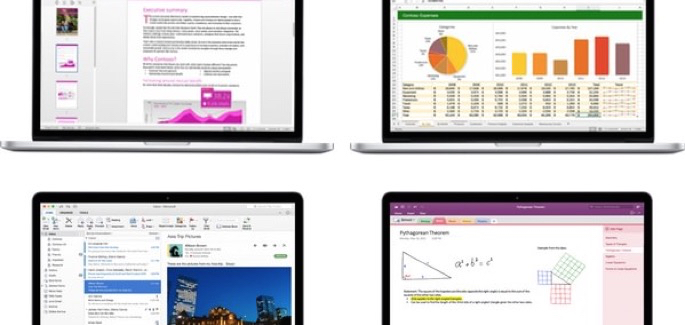
With the eyebrow of sceptical raised back in march i installed the 2016 beta and right there and then I saw the new micosoft releasing something special. A version of Office that worked, worked well, fitted in nicely on the Mac, cloud synching and lots more.
Apple have tried to fill the Office update voiced us Mac have endured for o so long but they never hit the spot. Thinking on it I don’t know who to blame for the lack of success of the iLife / iWork / Pages etc suite of apps but blaming all of this on Apple is unjust.
We live in a world thats being consumed by mobile first, PC 2nd. Companies go otu of their way for Facebook likes, instagramming, twitter, social media marketing all to raise exposure and yet most fail whenver it comes time to paperwork.
How many times have you hit a website where a form needs to be downloaded and it’s in a dreaded Word format. In 98% of cases whenever a word form needs filling in, it’s a disaster. Text boxes instead of fields, boxes are easily screwed up with too much text, more than once different fonts had been used but not cleared and then in the final step, saving a filled out document on your device normally has it’s own issues.
What really makes this situation all the more frustrating is that I would palce good money on those who are creating these lovely forms have a tablet from one make or another at home yet somehow can’t make the transition from the device on the couch to the real world, no matter how many times they might seem them out and about being used in the real world.
Not so long ago I completed a sporting event and in an eagerness to see the results I hit up the website only to find, to start with, I had to download an excel file and manually sort and filter to find the results. Easily done for myself even if it meant downloading to a laptop, downloading the file, waiting for more windows update to install etc etc.

Back to Office for the Mac.
On my rig it’s hard to tell if the loading times for Office 2016 are any better than before but that’s down to a hard drive thats been paved with updates rather than clean installs every time.
Scrolling around any of the apps is silky smooth, even one of my more complicated (read badly implemented) spreadsheets containing a hefty amount of data didn’t bad an eyelid.
Dealing with files takes a smallamount of getting used to. the new Microsoft clearly wants you to keep everything in the cloud and that’s the default save to position.
Outlook for Mac will no doubt be the killer app for the business types who want the lightest laptop out there which looks half decent..
Office 365 subscribers can get the newest version of Office for Mac today. Office 2016 for Mac will become available as a one-time purchase option this September.
More information over on the Office For Mac Microsoft Website