Page 3 of 5

Search notes with Siri

To create a new note, tell Siri, “Create a new note,” “Make a new note” or something similar. You can give a note a title at the same time, for instance, “Make a new note packing list” or “Create a new note places to visit.” That becomes the first line of the note. To update a note say, for example, “Update my note toothbrush, deodorant, book, tickets, camera.” If you’ve got more than one note, Siri will ask which note you’d like updated by providing a list.

That’s great, but you can also search notes just as easily. Here’s how.

1. Search by date. Activate Siri and say, “Find notes from March, 2013″ or “Find notes from March 7, 2013.” You can also ask, “Find notes from yesterday.”
2. Search by keyword. You can have Siri search your notes for a specific word by saying, “Search notes for ‘x’”, where “x” is the term you’re looking for. Siri returns the results as a tap-able list.

You can also ask Siri to list all your notes. This is much faster than using Apple’s Notes app manually.


siri_microphone

Advanced Siri Commands, Dealing With Numbers, Paragrahs, New Lines and No Spaces

Siri, so close to being a dream come true for speech recognition fanatics like myself yet so far.  A times you are a technological marvel, recongising every sylable with ease.  At other times a frustrating mess of repeating the most basic of phrases before giving up and resorting to using my fingers.  With that being said, here’s some more advanced commands you might not be aware you can do with Siri.

Continue reading → Advanced Siri Commands, Dealing With Numbers, Paragrahs, New Lines and No Spaces

Getting your website ready for the Retina generation: easy fixes

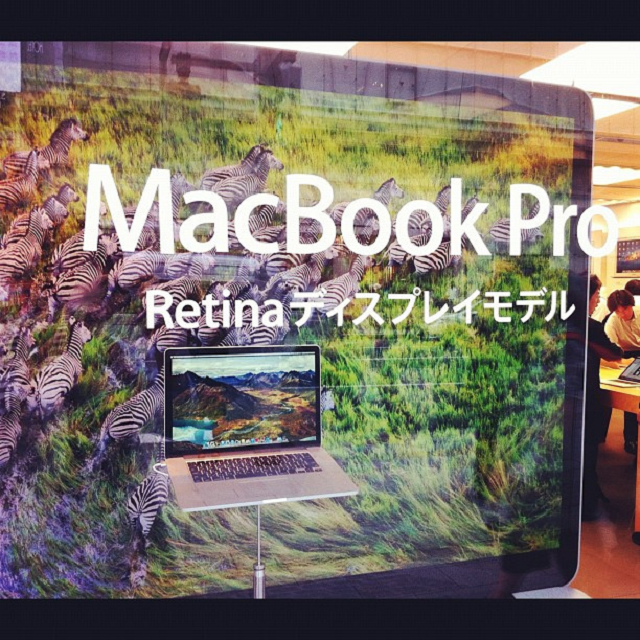
The floodgates are open. The popularity of the Macbook Pro with Retina Display has proven to the notebook and ultrabook manufacturing market that consumers are ready for a new breed of ultra-high resolution mobile computing devices. For web designers, this could prove another unnecessary headache. Luckily, there are ways around. Here’s how to optimise your site for Retina displays and therefore for increasing number notebook and ultrabook users.

Continue reading → Getting your website ready for the Retina generation: easy fixes

Windows 8 Media Center cannot play video the file type is not recognised

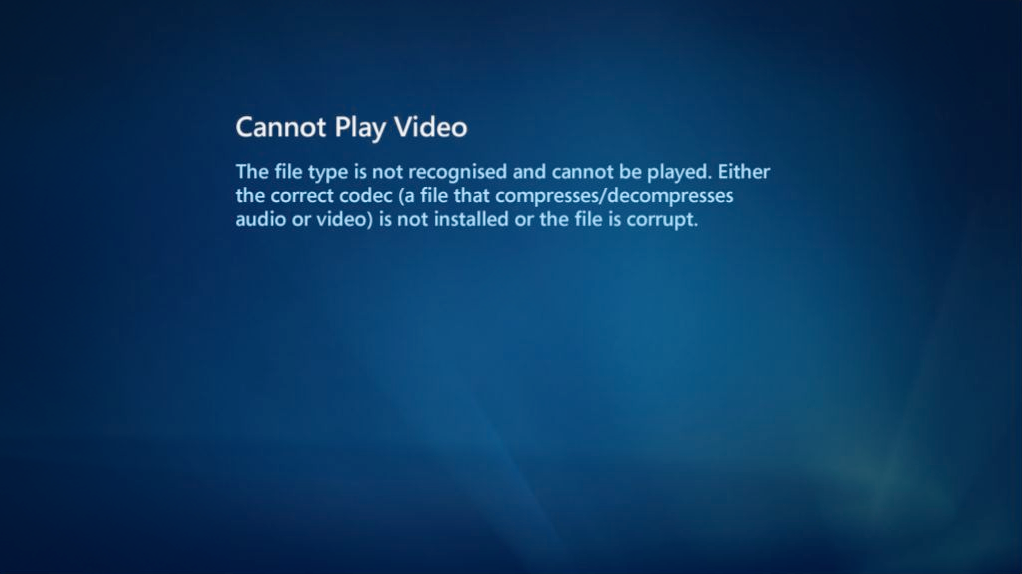
Windows 8 Fail : Cannot play video, the file type is not recognised and cannot be played

So in the interests of balance I put down my £14.99 for windows 8 (cheapest price out there) to see what the next Apple killing product / OS is really like. Should I be ready to dump all the Apple posts, blogging, equipment before the ship sinks as predicted by everyone? No. It’s taken a day for windows 8 media center to stop working without me doing a single darn thing to it..

Continue reading → Windows 8 Fail : Cannot play video, the file type is not recognised and cannot be played

Microsoft Office 2011 for Mac Icons Looking Blurry After 14.2.4 Update

Microsofts patch For the ever popular office 2011 suite of applications promised are being retina display icons to the new MacBook Air and MacBook Pro lines. However after installing the patch you may need to do some additional steps to get retina icons for Microsoft office to display properly.  Here’s how to enable that retina goodness…

Continue reading → Microsoft Office 2011 for Mac Icons Looking Blurry After 14.2.4 Update

Mountain Lion Airdrop

How To Use AirDrop Over Ethernet (Hackintosh Tested)

AirDrop How To Use AirDrop Over Ethernet (Hackintosh Tested)

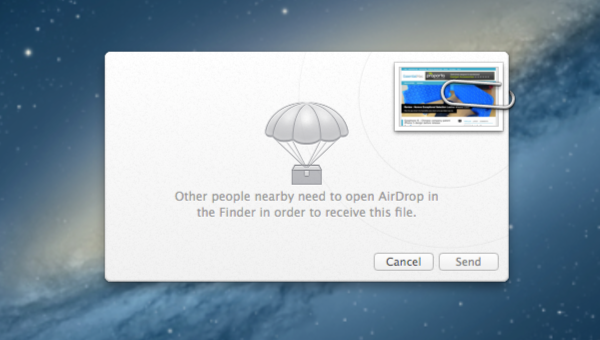
Air drop has proved invaluable these last few weeks for shifting data from my old Macbook over to my iMac.  Sure I could go down the USB drive route but often it’s just one file that I need and plugging in, copying, ejecting, unplugging, plugging in again gets tedious.  Airdrop is great for that but it’s a pain you couldn’t use it over ethernet until now.

Continue reading → How To Use AirDrop Over Ethernet (Hackintosh Tested)